
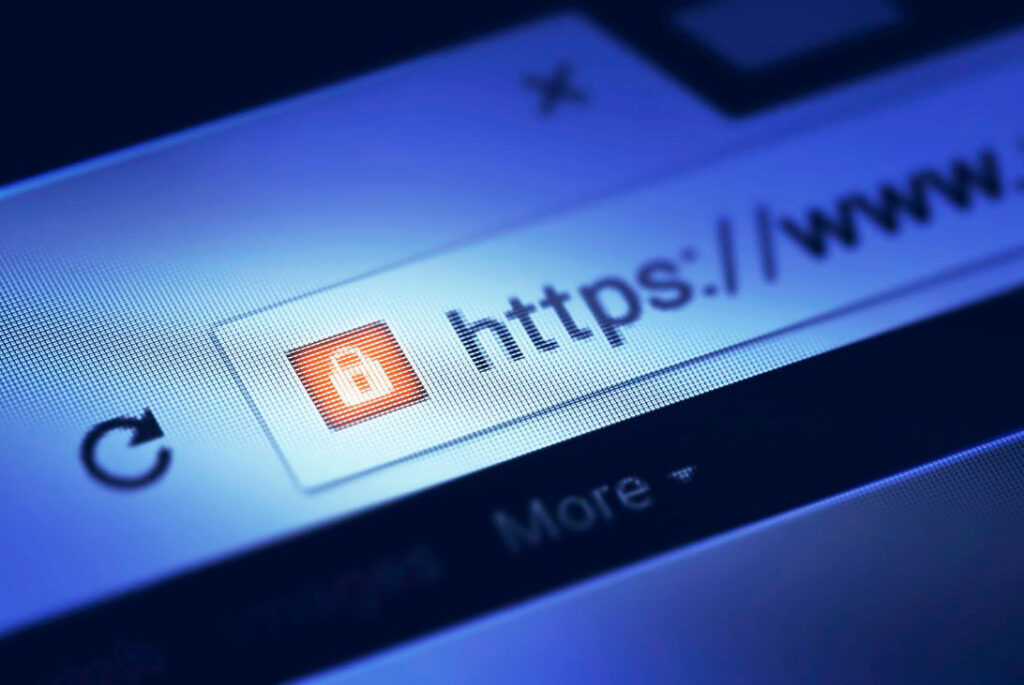
A secure browser is a web browser that incorporates a range of security features and technologies to protect users from various online security threats and keeping their data secure from the third parties.
These days browsers are becoming the data collection tools which employees use most to access their work. So, hackers are following this trend with attempts to exploit organizations through browsers.
Browser Visibility
With multiple browsers in the market and each of these browsers using their own set of add-ons, It hard to predict where attacks might spring out from. where have no idea what browsers are being used, if the browsers are up to date, which add-ons are being used, and if they are safe and up to date.
So, Awareness is the first step towards empowerment.
- Keep track of the browsers being used.
- Remain vigilant about browsers that aren’t up to date.
- Watch out for computers that haven’t been in contact for a period.
- Stay aware of add-ons that are popularly used.
- Keep track of potentially harmful add-ons in use.
- Track and monitor websites accessed using Internet Explorer, Edge, and Chrome.
- Keep track of the users’ downloads in Chrome and Edge browsers.
Secure browser settings
- Optimizing browser’s settings is a critical step in using the Internet securely and privately.
- Today’s popular browsers include built-in security features, but users often fail to optimize their browser’s security settings on installation.
- Failing to correctly set up your browser’s security features can put you at a higher risk for malware infections and malicious attacks.
- While it is impossible to guarantee complete protection from cyber threats,
Following these tips will greatly increase the security of web browser.
- Secure Browsing with Google Chrome
- Secure Browsing with Mozilla Firefox
- Secure Browsing with Microsoft Internet Explorer 10
Secure Browsing with Google Chrome
These settings can be accessed through Chrome’s “Advanced Settings” menu by navigating to “chrome://settings/. “
- Enable phishing and malware protection: Make sure that Chrome’s phishing and malware protection feature is enabled under the “Privacy” section. This feature will warn you if a site you’re trying to visit may be phishing or contain malware.
- Turn off instant search: The Instant search feature should be turned off for optimal security. While it offers some convenience in searching, having this feature enabled means that anything you type in the address bar is instantly sent to Google.
- Don’t sync: Disconnect your email account from your browser under the “Personal Stuff” tab. Syncing your email account with your Chrome browser means that personal information such as passwords, autofill data, preferences, and more is stored on Google’s servers. If you must use sync, select the “Encrypt all synced data” option and create a unique passphrase for encryption.
- Configure content settings:
Click “Content settings” under the “Privacy” section and do the following: Cookies:
Select “Keep local data only until I quit my browser” and “Block third-party cookies and site data.”
These options ensure that your cookies will be deleted upon quitting Chrome and that advertisers will not be able to track you using third-party cookies.
-
- JavaScript: Select “Do not allow any site to run JavaScript.” It is widely recommended that JavaScript be disabled whenever possible to protect users from its security vulnerabilities.
- Pop-ups: Select “Do not allow any site to show pop-ups.
- Location: Select “Do not allow any site to track my physical location.”
- Configure passwords and forms settings: Disable Auto fill and deselect “Offer to save passwords I enter on the web” under the “Passwords and forms” section. Doing so will prevent Chrome from saving your logins, passwords, and other sensitive information that you enter into forms.
Secure Browsing with Mozilla Firefox
These settings can be accessed through the Menu bar at the top of the screen, click Firefox and select Setting and select the privacy & security panel.
- Configure privacy settings: Under the “Privacy” tab, complete the following steps. These measures ensure that Firefox is storing only as much of your information as it needs to function normally. Select “Use custom settings for history.”
- Deselect “Remember my browsing and download history.”
- Deselect “Remember search and form history.”
- Deselect “Accept third-party cookies.”
- Set cookie storage to “Keep until I close Firefox.”
- Select “Clear history when Firefox closes.”
- 2. Configure security settings: Under the “Security” tab, choose the following settings. These steps prevent Firefox from saving your passwords and keep you from visiting potentially harmful sites.
- Verify that “Warn me when sites try to install add-ons,” “Block reported attack sites,” and “Block reported web forgeries” are all selected.
- Deselect “Remember passwords for sites.”
- Disable JavaScript: Deselect “Enable JavaScript” under the “Content” tab. JavaScript is notorious for containing security vulnerabilities and it is recommended that users only enable it for trusted sites.
- Enable pop-up blocking: Verify that “Block pop-up windows” is selected under the “Content” tab. This feature should be turned on by default as it protects users from unwarranted advertisements and windows.
- Don’t sync: Avoid using Firefox Sync. By doing so you prevent Firefox from storing your logins, passwords, and other sensitive information.
- Turn on automatic updates: Verify that “Automatically install updates” is selected in the “Update” tab under “Advanced.” Doing so will ensure that your browser receives critical security updates. Verify that “Automatically update Search Engines” is selected as well.
- Use secure protocols: Verify that “Use SSL 3.0” and “Use TLS 1.0” are selected in the “Encryption” tab under “Advanced.”
Secure Browsing with Microsoft Internet Explorer 10
These settings can be accessed through the “Internet Options” menu.
- Configure security settings: Under the “Security” tab, do the following:
- Set security zones: IE offers the option to configure different security settings for different “zones,” including the Internet, local intranet, trusted sites, and restricted sites. Set up the zones for Intranet, Trusted Sites, and Restricted sites to your desired security level.
- Set Internet zone security to “Medium High” or higher. This blocks certain cookie types, enables ActiveX filtering, and implements several other default settings for increased security.
- Disable JavaScript: Click “Custom Level,” locate the “Active Scripting” setting, and select “Disable.” It is recommended that users disable JavaScript because of the high number of vulnerabilities it contains.
- Automatically clear history: Select “Delete browsing history on exit” under the “General” tab. Clearing your history at the end of each session helps to limit the amount of information IE saves when you browse.
- Configure privacy settings: Under the “Privacy” tab, complete the following steps:
- Privacy setting: Set the Internet zone privacy to “Medium High” or higher. This blocks certain cookie types to prevent sites from tracking or contacting you without your consent.
- Location: Select “Never allow websites to request your physical location.”
- Pop-up Blocker: Double check that Pop-up Blocker is enabled.
- Configure Advanced Security settings: Scroll down to the “Security” section under the “Advanced” tab and do the following:
- Ensure that all default settings are in place. If you aren’t sure, click “Restore advanced settings” before making any other changes.
- Select “Do not save encrypted pages to disk.” This will delete files cached from HTTPS pages when the browser is closed.
- Select “Empty Temporary Internet Files folder when browser is closed.” This prevents IE from storing your personal info (logins, passwords, activity, etc) beyond your browsing session.
- Turn off auto Complete: The AutoComplete feature should be turned off for forms and usernames/passwords. Keeping AutoComplete turned off ensures that your sensitive information isn’t being stored unnecessarily.
- Tracking protection: IE’s Tracking Protection feature keeps your browsing private from specified third-party websites. This feature can be accessed through IE’s “Safety” menu. In order to use Tracking Protection, you will need to provide a Tracking Protection List that names all of the sites you don’t want your information being sent to. You can create a list yourself or download lists online.
Which is the Most Secure Browser?
Nominating one browser as the most secure is difficult. Since each browser is regularly updated with security patches, the rankings for most secure browser could change at any time. Most of the renown cyber security agencies recommends Google Chrome as the most secure browser.